pylon: USB3 Vision Systems for Real Time and High Performance
Optimize systems for Windows & Linux
In this tutorial, you will learn how to set up single camera systems in pylon to achieve maximum performance in your application. The focus is on optimizations for USB3 Vision setups that take into account cameras, host controllers, and cables.
Reading time: approx. 6 Minutes
Quick start - 5 steps to stable streams
Open the camera in the pylon Viewer: Ensure that the connection, driver, and firmware are working correctly
Configure drivers and system correctly: Select current host controller drivers and suitable operating system settings (e.g. real-time priorities)
Targeted bandwidth control: Sensible limits and clean distribution of the available USB bandwidth to avoid data loss
Optimize streaming parameters: Set the maximum transfer size, number of USB Request Blocks (URBs), and Buffer Sizes → efficient transfer, minimum CPU load
Use monitoring and error analysis: Start continuous grabbing; statistics counter for lost frames, resynchronizations, or memory problems → detect bottlenecks in the setup at an early stage
Requirements for full system performance
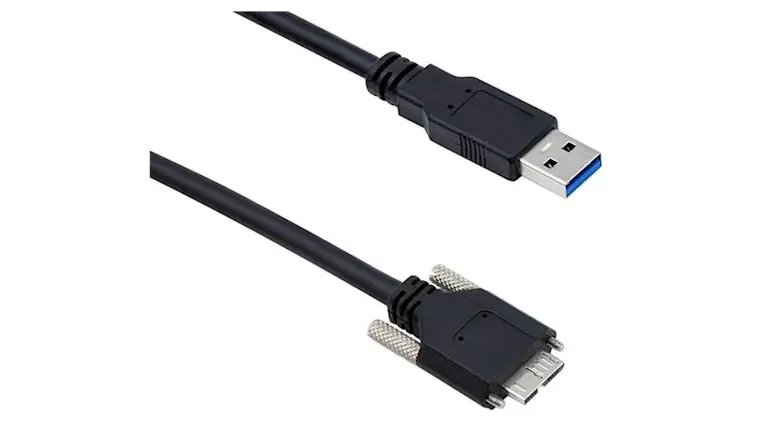
USB 3.0 cable: Industrial, high-quality components reduce transmission errors and increase system stability
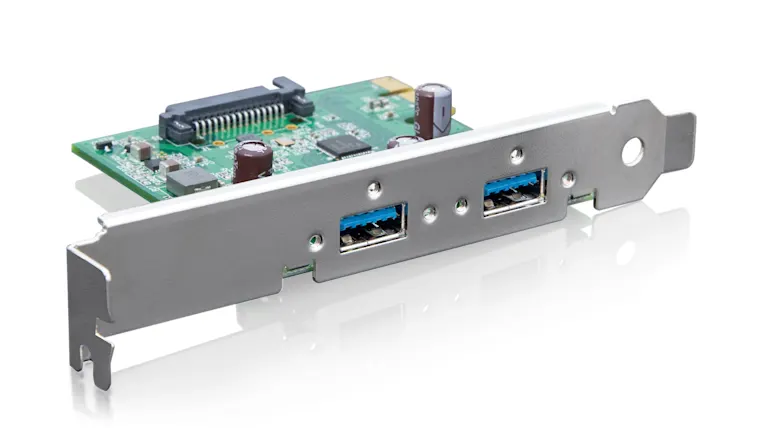
High-quality host controllers (USB controllers): With up-to-date drivers; outdated or inferior controllers often lead to bandwidth bottlenecks, resync errors, and lost frames
Sufficient PC memory (RAM): Particularly important for large transfer sizes
Below you will learn which pylon parameters to set for maximum performance of your vision setup. The camera settings apply to Windows and Linux; additional system parameters for Linux are listed separately.
Optimum settings for USB 3.0 cameras
The camera settings have a significant influence on the performance and stability of data transmission. The aim is to optimally adjust the bandwidth to avoid errors.
These two parameters in the pylon Viewer have a particular impact on bandwidth and stability:
Device Link Throughput Limit Mode: Activates or deactivates the entire bandwidth control
Recommended: Activated if the host controller bandwidth is limitedDevice Link Throughput Limit: Determines the maximum available bandwidth of the camera for data transmission.
Bottlenecks can be avoided by reducing this value.
In pylon, go to the Features All tree and select Controlling the frame rate as the Common Task. You will find the camera parameters in the Device Control entry.
Set USB3 parameters for Windows
The following five USB3 parameters are configured in pylon under Stream Parameters. Correct settings increase the performance and stability of the vision system with reduced CPU load.
Maximum Transfer Size (MaxTransferSize)
Size of the stream packets for image transfer (comparable to jumbo frames with GigE). Larger values = higher performance, less CPU load; max. = 4 MB depending on the USB host controllerNumber of Maximum Queued URBs (NumMaxQueuedUrbs)
URBs = USB Request Blocks, i.e. simultaneously processable USB requests
Used to set the camera and host controller optimally to each other.
Try a higher value = less jitter, more stable data transfer (limit: available RAM of the PC); default setting = 64Maximum Number of Buffers (MaxNumBuffer)
Number of image buffers; increase if image processing temporarily takes longer; default = 10Number of Queued Buffers (NumQueuedBuffers)
Shows how stable the number of buffers and the image acquisition are; a falling value could be an indication of image lossTransfer Loop Thread Priority (TransferLoopThreadPriority)
Priority of the thread that processes USB transfers. For maximum performance: start pylon Viewer with administrator rights and increase priority from 15 to 25 (max. = 31)
Go to the Features All tree and select Checking whether the camera is losing image data as the Common Task. You will find the USB3 parameters in the Stream Parameters entry.
Optimize USB3 Vision setups under Linux
The camera settings are the same as under Windows. However, some additional system parameters are relevant under Linux:
Receive Thread Priority
For image transmission, the thread should receive a real-time priority.Increase USB-FS Kernel Space
Prevents bottlenecks in the kernel memory for USB transfers
Particularly important for: large transfer sizes
Increase File Handle Limit / File Descriptor
Important for large package sizes
Customization depending on system and workload
Setting various system parameters under Linux
Demo: tuning options
In the demo, you will learn how to set various parameters in the pylon Viewer so that the system runs optimally and stably. To make settings, you should use the pylon Viewer with administrator rights.
The setup includes a Windows PC, a USB3 camera, and the pylon software.
Troubleshooting & success monitoring
pylon offers several statistical parameters that indicate problems at an early stage:
Failed Buffer Count: Corrupted or discarded images; indicates that errors are already occurring (e.g. bandwidth bottlenecks)
Missed Frame Count: Camera has captured an image but has not transmitted it, e.g. because internal camera buffer is filled too quickly → indication of: frame rate too high, host controller bandwidth too low
Resynchronization Count: Fatal error → host controller resets connection → consequences: all images stored in the camera buffer are lost
Causes: massively overloaded host controller, faulty cable, poor power supply
For precise analysis: Open pylon viewer → Features All → Stream Parameters → observe statistical values
Go to the Features All tree in pylon and select Checking whether the camera is losing image data as the Common Task. You will find the statistical parameters in the Stream Parameters entry.
By right-clicking on a parameter (on the right-hand side of the screen under Features), you can access the product documentation with detailed explanations and source code snippets. This can be accessed at any time from the pylon Viewer, even without an internet connection.
Basler Product DocumentationLearn how to optimize your GigE Vision system for real time and high performance.
To the tutorial for GigE Vision systemsOptimized USB3 Vision systems
The performance and reliability of a USB3 Vision system always depends on several levels that must interact optimally.
High-quality hardware: Industrial USB3 cable and current host controller
Optimized camera settings: Bandwidth control, packet sizes, and delays
Correct USB3 parameters in pylon: Transfer Sizes, URBs, Buffer Management, and Thread Priorities
System monitoring via statistics parameters: Failed Buffer Count, Missed Frame Count, and Resynchronization Count
Additional optimizations under Linux: Real-time Threads, Kernel Space, and File Handle Limits
Properly configured, single camera setups achieve stable, loss-free, and high-performance real-time image transmission.
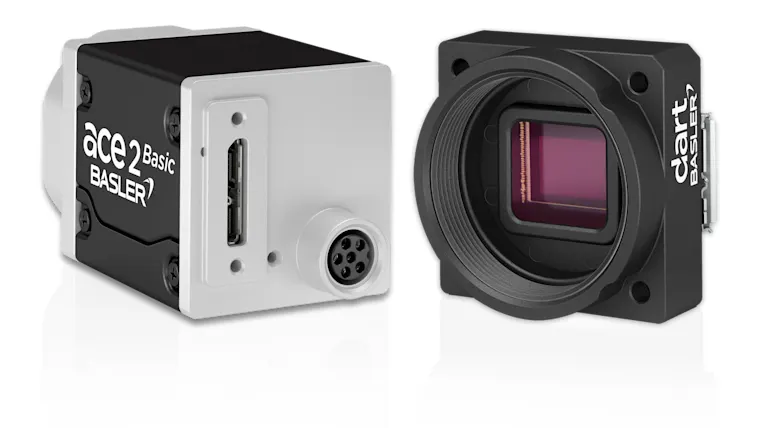
Products for USB 3.0 systems
Would you like to implement a comparable solution? These products will help you.