pylon: GigE Vision Systems for Real Time and High Performance
Optimize systems for Windows & Linux
In this tutorial, you will learn how to set up single and multi-camera setups in pylon to achieve maximum performance in your application. The focus is on optimizations for GigE Vision setups that take into account cameras as well as cables, NICs, and switches.
Reading time: approx. 6 Minutes
Quick start - 5 steps to stable streams
Open camera in pylon Viewer → Packet Size max, IPD balance, save User Set
Windows / Linux: Enable Jumbo Frames (MTU 8192-9014)
Increase NIC buffers / descriptors; trim Interrupt Moderation to low latency
pylon: Increase Receive Thread Priority & Socket Buffer Size
Test: pylon Statistics → Failed Buffer and Underrun must remain 0
Requirements for full system performance
Cable: Cat-6 S/FTP or S/STP, tested industrial quality
Network card: Intel i210, i340, i350 or newer (with current driver)
Switch: Managed / PoE-capable; Gigabit
Software: pylon Viewer installed; admin rights available
Network: Camera on dedicated NIC, not parallel to WLAN / internet
Below you will find out which parameters you can set to maximize the performance of the vision setup in pylon.
Configuring GigE Vision cameras
For GigE Vision cameras, the Bandwidth Manager offers an Optimize function that automatically adjusts the Packet Size and Inter-Packet Delay (IPD). This allows multiple cameras to be operated efficiently via one adapter - particularly important when using a switch. Manual fine-tuning in the pylon Viewer (Feature Tree → Transport Layer):
Packet Size (GevSCPSPacketSize): As large as possible → maximum efficiency
Inter-Packet Delay (GevSCPD): Small pauses between packets → prevents drops in multi-camera setups
Frame Transmission Delay (GevSCFTD): Useful for synchronous triggering
Device Link Throughput Limit: Limit the bandwidth per camera → avoid conflicts
Demo: tuning options for camera parameters
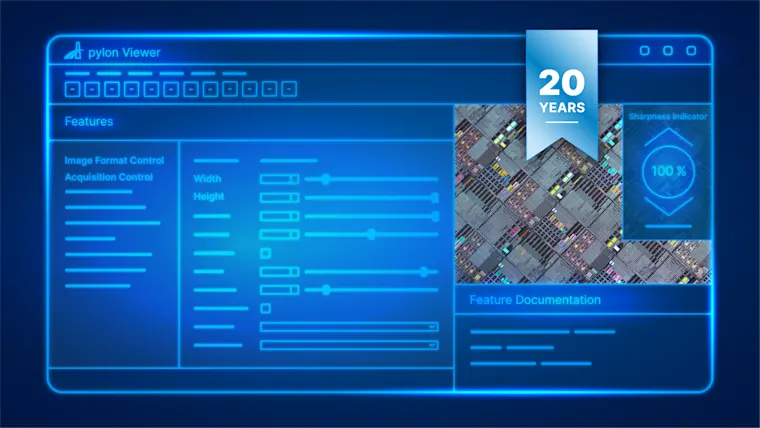
The video explains how to set the mentioned camera parameters in the pylon Viewer. Go to the Features All tree and select Controlling the frame rate under Common Tasks. These and additional parameters are located in the Transport Layer section
Optimize Windows (NIC & system)
Goal: reduce latency, avoid image loss.
Recommended settings in the NIC driver:
Jumbo Packet / MTU: To 9014 bytes (or maximum possible size)
Receive Buffers / Descriptors: Increase, e.g. to 2048
Interrupt Moderation Rate (ITR): High (3,600) or low for low latency
Additionally in pylon:
Increase GrabLoopThreadPriority and InternalGrabEngineThreadPriority (25-30)
Success control:
30-60 seconds continuous stream → Failed Buffer = 0
Demo: tuning options for the NIC
On a Windows PC, make sure that you have a server network card that supports all the parameters mentioned above (Jumbo Frames, IMR, Receive Descriptors). To configure these settings, right click the GigE adapter in Network Connections > select Configure > open the Advanced tab and adjust the parameters as needed. The video guides you through the settings in pylon and in the pylon Viewer.
Optimize Linux (NIC & system)
Goal: stable streams even with high bandwidth.
Command examples:
# Activate jumbo frames
sudo ifconfig eth0 mtu 8192
# Increase ring buffer
sudo ethtool -G ethX rx 4096 tx 4096
# Interrupt moderation: low latency
sudo ethtool -C ethX adaptive-rx off adaptive-tx off rx-usecs 62 tx-usecs 62
# Increase UDP buffer
sudo sysctl -w net.core.rmem_max=4096000
pylon settings:
ReceiveThreadPriority: Increase (e.g. > 50, max. 99)
Increase SocketBufferSize: Augment (e.g. ≥ 2048 KB)
Demo: tuning options for GigE Vision setups
In the demo, you will learn how to set the various parameters in pylon so that the system runs optimally and stably.
The setup consists of a Linux PC with Ubuntu, a GigE camera, a NIC, and the pylon software.
Go to the Features All tree and select Checking whether the camera is losing image data as the Common Task. You will find the parameters in the Stream Parameters entry.
Multi-camera setup
Multiple cameras via one switch are possible - but require data serialization.
Option 1 - Bandwidth Manager:
Click on Optimize → automatic distribution of packet size, IPD, and FTD
Option 2 - Manual tuning:
IPD: Packet duration × (N-1) → prevents collisions
FTD: Define start delay per camera for synchronous triggering
Goal: All streams run stable, no failed buffers.
Demo: tuning options for multi-camera systems
Here you can find out how to make the settings in the pylon Viewer and the pylon Bandwidth Manager for two cameras and an unmanaged switch so that all cameras transmit their image with the maximum available bandwidth.
Go to the Features All tree and select Controlling the frame rate as the Common Task. The cameras can be configured automatically in the Transport Layer entry.
Troubleshooting & success monitoring
Use the pylon Statistics to identify bottlenecks immediately:
Failed Buffer Count: At least one packet lost in the frame
Buffer Underrun Count: Too little buffer available
Typical errors & solutions:
0xE1000014 (buffer incomplete): Adjust IPD or packet size
0xE1000016 (control channel disconnected): Check cable / NIC / switch
Many Failed Buffers: Increase UDP Buffer or SocketBufferSize
By right-clicking on a parameter (on the right-hand side of the screen under Features), you can access the product documentation with detailed explanations and source code snippets. This can be accessed at any time from the pylon Viewer, even without an internet connection.
Basler Product DocumentationFind out here how to optimize your USB3 Vision system for real time and high performance.
To the tutorial for USB3 Vision systemsOptimized GigE Vision systems
The performance and reliability of a GigE Vision system always depends on several levels that must interact optimally.
Robust hardware: Use tested industrial components - High-quality cables, high-performance network cards and suitable switches are the basis for stable data transmission.
Set camera parameters correctly to ensure efficient and loss free image transmission, even in multi-camera setups. Use the largest possible Packet Size, along with an appropriate Inter Packet Delay (IPD) and, if needed, a Frame Transmission Delay (FTD).
Optimize pylon& system settings: Adjust Buffer Sizes, increase Thread Priorities, and correctly set network parameters (e.g. Jumbo Frames, Socket Buffer Size) to ensure that your computer can process the high data rates reliably.
If all three areas are taken into account, your pylon based GigE Vision system works with maximum stability, minimum latency, and high performance reserves - both under Windows and Linux.
Products for GigE Vision systems
Would you like to implement a comparable solution? These products can help you.