pylon vTools: Calibration & Rectification
Camera calibration to precisely convert pixel coordinates to real-world coordinates
In this tutorial, we convert the vTool Calibration & Rectification procedure into a recipe and translate the pixel coordinates of the camera into real world coordinates. Also included: rectifying radial and perspective distortion effects that might be caused by camera settings.
Creating the recipe
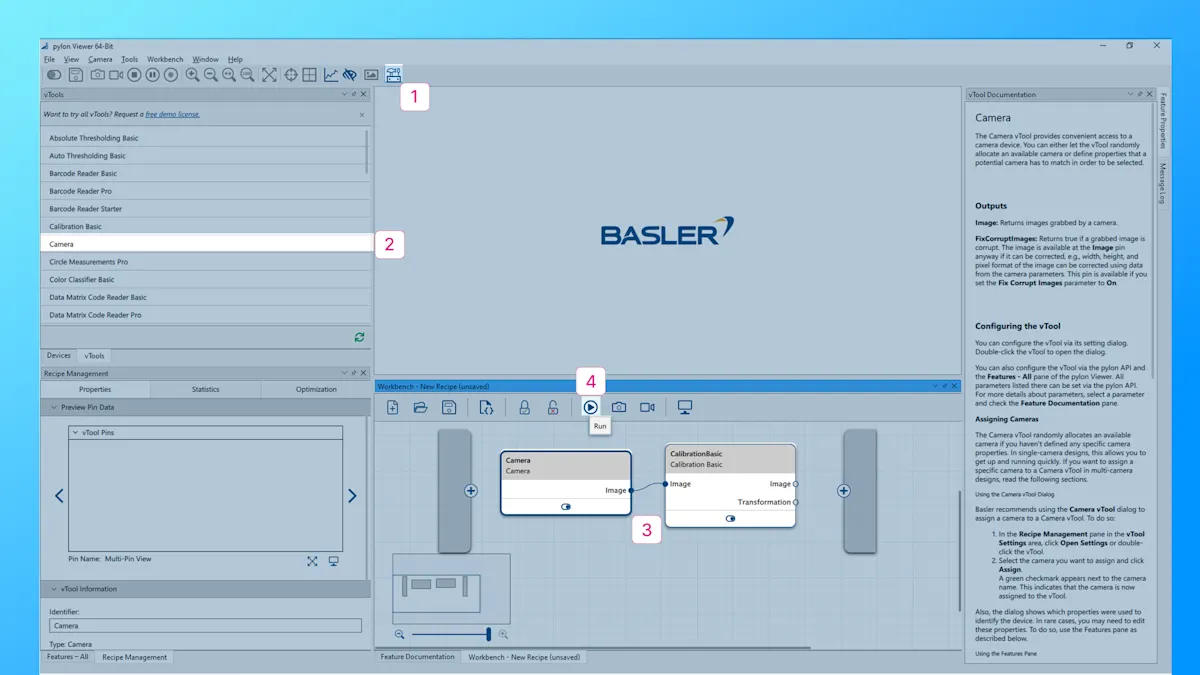
Access the workbench from the top menu.
Create a simple recipe featuring a Camera vTool and a Calibration vTool, either using the vTool pane on the left or by right-clicking on the Workbench pane.
Easily connect the Image output pin of the Camera vTool and the Image input pin of the Calibration vTool.
Select the Camera vTool and click Run to utilize the live camera image for calibration.
Tip: When editing an existing recipe, remember to Stop the currently running recipe.
The calibration process
Double-click the Calibration vTool to open the settings dialog and start the calibration process.
The calibration requires a calibration plate.
Select a calibration plate from the dropdown list that matches the size of your camera's field of view.
If you don't have a printout already, print it in its actual size and affix it to a sturdy, flat surface (such as an aluminum plate or thick cardboard) for optimal results.
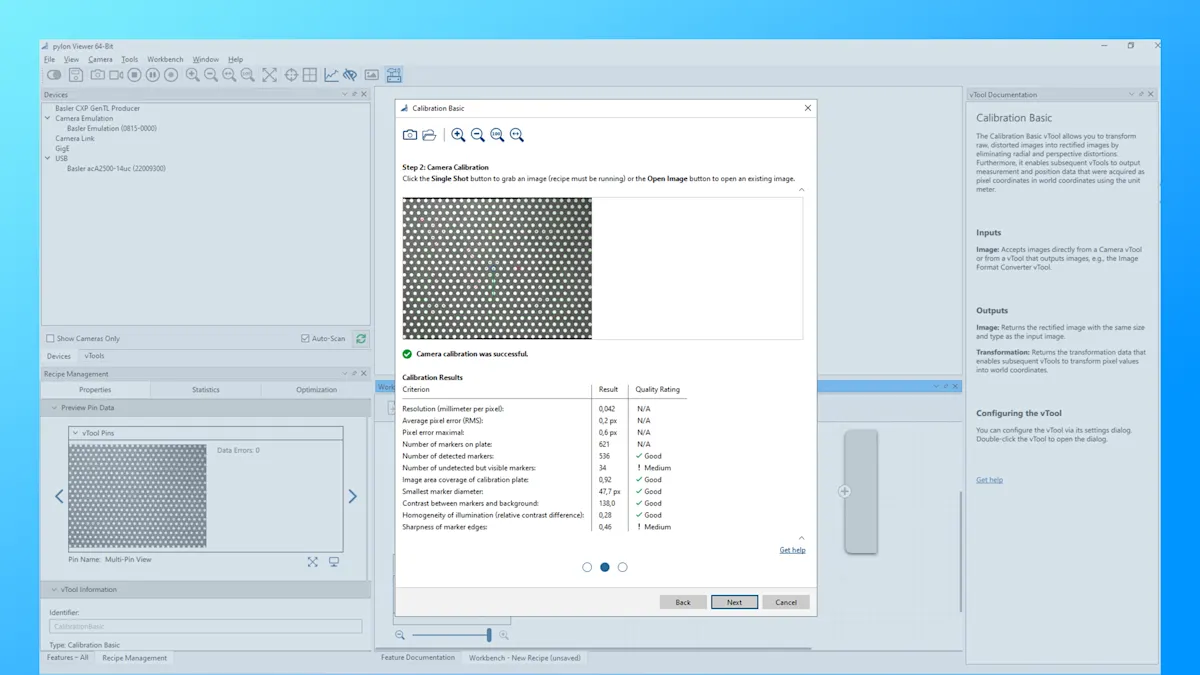
Position the calibration plate within the camera's field of view at the same distance as your objects.
Click Next and Capture an image of the calibration plate.
The calibration process starts automatically, and upon completion, you can directly see the results.
Click Next and OK to return to your Recipe.
Tip: If using an existing image, ensure it was captured under the same conditions as your current setup to ensure accurate results.
Visualizza dati dei pin
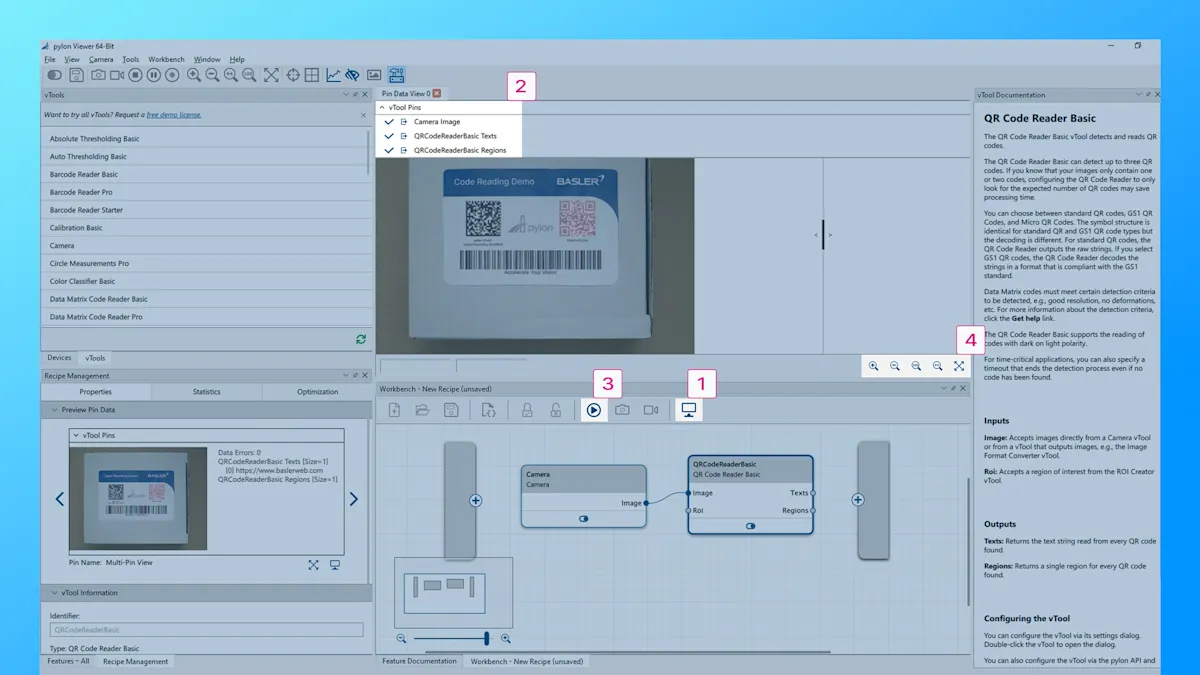
Per esaminare più da vicino i risultati di vTools in una ricetta, apri la finestra "Pin Data View".
Seleziona tutti i pin che ti interessano.
Esegui la ricetta per vedere i risultati.
Modifica le impostazioni della vista "Dati dei pin" secondo necessità. I risultati dettagliati vengono visualizzati accanto all'immagine di output.
Suggerimento: non tutti i pin sono selezionati di default.
Ti interessano i pylon vTools e vuoi provarli?
Richiedi subito una licenza di prova gratuita per poter testare tutti i vTools con tutte le funzionalità e scoprire quali sono quelli più adatti alle tue esigenze di elaborazione delle immagini.
Altre esercitazioni su vTools di pylon


pylon vTools
Componenti aggiuntivi software flessibili per la visione industriale
Con i vTools modulari di pylon, non si acquista una libreria di visione estesa, ma solo le funzioni di elaborazione delle immagini necessarie, basate sull'intelligenza artificiale o su algoritmi classici. Selezionate la licenza appropriata (Starter, Basic e Pro) con la gamma di funzioni desiderata.